How to Download Meta Ads Invoices: Per-Charge & Monthly (2026 Guide)
Download Meta Ads invoices per-charge or monthly. Ads Manager walkthrough, permissions, troubleshooting - and how Tailride automates it for finance teams.

Last updated: April 2026 · 9 min read
At Tailride, we process thousands of ad invoices every month across Meta, Google, and other platforms. This guide reflects what we've learned about Meta's billing system - including the edge cases that consistently trip up finance teams.
TL;DR - Get any Meta Ads invoice in 4 steps
-
Open Meta Ads Manager and click Billing in the main navigation menu
-
Open the Transaction History tab
-
Set a date range to filter to the billing period you need
-
Click the download icon next to the completed transaction to get the PDF
That covers the default per-charge flow. If your account uses monthly consolidated invoicing, the download lives in the Billing Documents tab - covered in Mode B below.
Managing invoices across multiple Meta accounts? Tailride automates the entire collection process →
Per-charge vs monthly - choose your billing mode first
Meta operates two distinct invoicing modes, and the download path differs for each. Most advertisers start on per-charge (the default), but high-volume accounts and agencies often switch to monthly consolidated.
| Mode A: Per-charge | Mode B: Monthly consolidated | |
|---|---|---|
| How it works | Invoice per payment threshold hit | One invoice for the full billing cycle |
| Download location | Transaction History | Billing Documents tab |
| Invoice timing | After each charge clears | End of billing month |
| Auto email delivery | No | Yes - sent to billing contact |
| Best for | Solo advertisers, low-volume accounts | Agencies, finance teams, high-spend accounts |
Decision rule: If you manage more than three ad accounts or reconcile monthly with an accountant, switch to monthly invoicing. The setup takes two minutes and eliminates the per-transaction download loop.
Mode A: Per-charge invoices (Meta default)
This is how Meta bills by default. Each time your ad spend hits a payment threshold - or at month's end if the threshold hasn't been reached - Meta charges your payment method and generates a PDF invoice.
Step 1 - Open Ads Manager → Billing
Go to Meta Ads Manager. In the main navigation (the three-line hamburger icon on the left), click Billing. This takes you to your financial hub: recent charges, current payment method, and account balance.
Step 2 - Open Transaction History
Inside Billing, click the Transaction History tab. You'll see a chronological list of every charge Meta has processed against your account.
Step 3 - Filter by date range
Use the date range filter to narrow down to the billing period you need. You can choose presets (Last 30 days, Last quarter) or set a custom start and end date - useful during tax season when you need invoices for a full fiscal year.
Step 4 - Click the download icon
Each completed payment has a download icon to the right. Click it to get the PDF for that transaction. The download is immediate.
Why is my invoice timing unpredictable?
Meta doesn't charge on a fixed monthly date by default. It uses a billing threshold system: when your cumulative ad spend reaches a preset amount (typically $25, $50, or $250 depending on account history), Meta charges your payment method and generates an invoice at that moment - not at month's end.
This means you can receive multiple invoices in a single day during a heavy campaign, or none at all during a low-spend period. At month's end, Meta charges any remaining balance that hasn't yet hit the threshold.
Practical implication for finance teams: if you're expecting one invoice per month but see four or five, this is why. The total spend across all of them is your actual monthly ad cost. Plan your reconciliation workflow around transaction-level matching, not calendar dates.
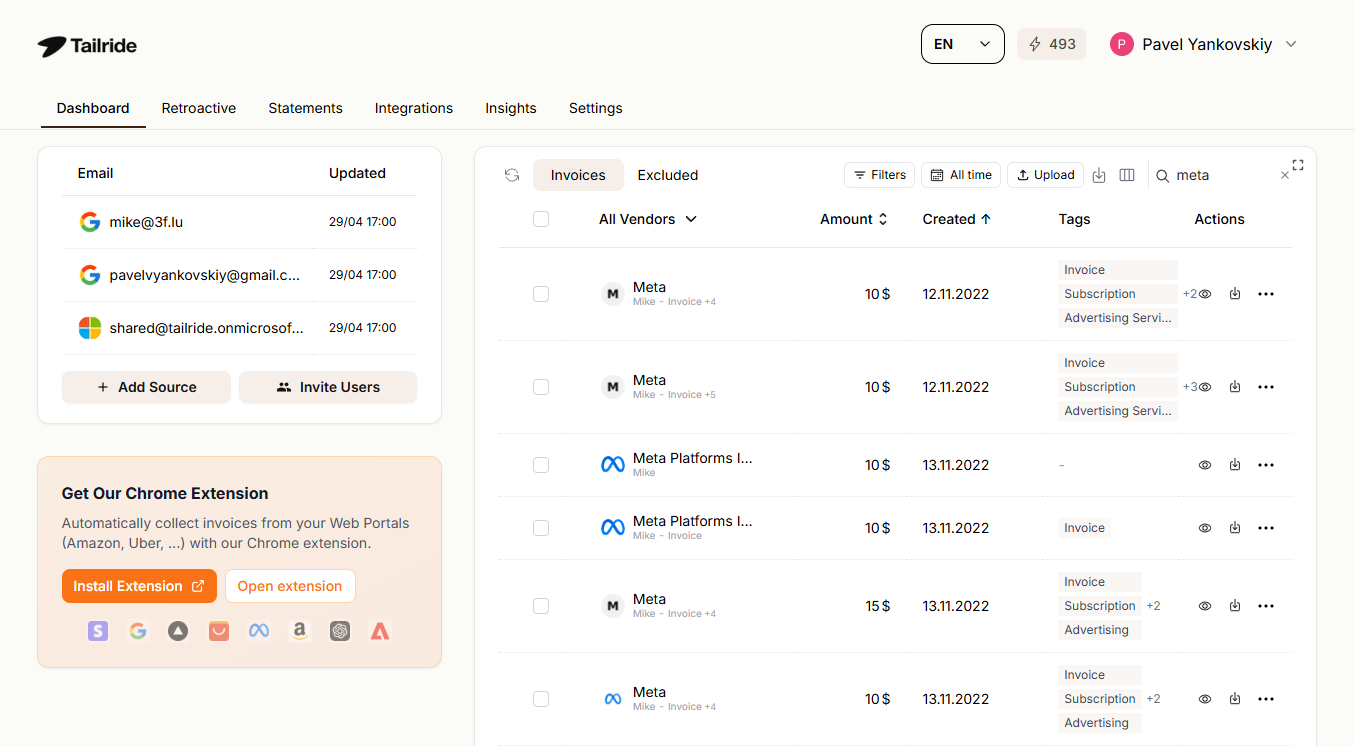
Tailride collects all your Meta Ads invoices automatically - across accounts, without manual login loops.
⚡ Skip the manual loop
Tailride connects to your Meta Ads accounts and collects invoices automatically - per-charge and monthly - across all your Business Managers. No logins, no missed PDFs, no filing overhead.
→ Try free - first 10 invoices on us
Manual download vs Tailride - what it actually costs
The four-step flow above works for one account. At scale, it compounds fast.
| Manual download | Tailride | |
|---|---|---|
| Time per account per month | ~7 min | 0 min |
| 10 accounts | ~70 min | ~2 min setup |
| Invoice naming and filing | Manual | Auto-categorized |
| Missed invoices | Common (pending/failed not flagged) | Flagged automatically |
| VAT field extraction | Manual from PDF | Extracted automatically |
| Historical backlog recovery | Manual re-download session | Retroactive scanning |
| Multi-platform (Meta + Google Ads + others) | Separate workflow per platform | Unified inbox |
At 10 client accounts, manual collection costs roughly 70 minutes per billing cycle - not counting failed payments or permission issues requiring back-and-forth with clients.
To scale invoice collection across all your vendors and portals - not just Meta - see our complete guide on automated invoice capture software.
Mode B: Monthly consolidated invoices
Monthly invoicing replaces the per-charge model with a single document covering all your ad spend for the billing cycle. Meta sends it automatically by email when the cycle closes.
Who qualifies for monthly invoicing
Monthly invoicing is available to accounts that meet Meta's eligibility criteria:
-
Consistent spend history with no recent payment failures
-
Business verification completed in Business Manager
-
Available in most markets (some regions have restrictions)
If the option isn't visible in your Billing Preferences, your account may not yet qualify. Accounts with recent payment failures are typically locked out until they re-establish a clean payment record.
How to switch to monthly invoicing
-
In Ads Manager, go to Billing → Payment Settings
-
Find the Invoice or Monthly invoice option
-
Enable it and confirm your billing contact email
The change takes effect at the start of the next billing cycle. Previous per-charge invoices remain in Transaction History.
How to download a monthly consolidated invoice
Monthly invoices don't appear in Transaction History. They live in the Billing Documents tab (sometimes labeled Invoice History, depending on your account region). Select the billing period and download from there.
Automatic email delivery
Once you're on monthly invoicing, Meta emails the invoice to your primary billing contact after the cycle closes. You don't need to log in to get it - though the PDF is always available in Billing Documents as a backup.
If your accountant needs it directly, add their email as a billing contact in Payment Settings. To pair this with automatic data extraction from the email, see how AI invoice scanning from email works alongside monthly invoicing.
Permissions - the role wall everyone hits
Meta restricts billing access by role. If the download button is greyed out or the Billing section isn't visible at all, this is almost always the cause.
Role matrix
| Account Role | Can View Billing & Spend | Can Download Invoices | Can Edit Payment Methods |
|---|---|---|---|
| Admin | ✅ | ✅ | ✅ |
| Finance Editor | ✅ | ✅ | ✅ |
| Finance Analyst | ✅ | ✅ | ❌ |
| Advertiser | ✅ | ❌ | ❌ |
| Analyst | ❌ | ❌ | ❌ |
Finance Analyst is the right role for anyone who needs invoices but shouldn't touch payment methods or campaign settings. It's the standard role for bookkeepers and accountants working inside a client's Meta account.
What to do if the download button is greyed out
-
Check your role: Go to Ad Account Settings → Ad Account Roles. If your role is Advertiser or Analyst, you don't have billing download permissions.
-
Contact your account Admin: Ask them to update your role to Finance Analyst. It takes about 30 seconds on their end.
-
Template for the request:
"Can you update my role in [Ad Account Name] to Finance Analyst? I need to access billing documents for reconciliation but don't need access to payment methods or campaigns."
Business Manager vs personal ad account
Permissions work differently depending on how the account is structured:
-
Personal ad account: Roles are managed directly in Ad Account Settings. Only the account owner can grant access.
-
Business Manager account: Roles are managed at the Business Manager level (business.facebook.com → Users). An Admin at the Business Manager level must assign the Finance Analyst role - ad account-level settings alone aren't enough.
If you're an agency accessing a client account, make sure the client has added you through their Business Manager, not just as an ad account collaborator. Billing permissions only carry through when access was granted at the Business Manager level.
How to request a permission upgrade
If you're an agency or external accountant without direct Admin access:
-
Identify the account Admin (Business Manager → Users → Admins)
-
Send the request via Meta Business Suite messaging or email
-
Ask specifically for Finance Analyst - not Admin, which gives broader access than needed for invoice purposes
Reading your Meta Ads invoice
Once downloaded, a Meta invoice contains several fields that matter for accounting and tax compliance.
Business information - Your company name, registered address, and tax ID. Verify this matches your actual business entity. Errors here affect tax filing.
Billing period - The date range covered by this invoice. For per-charge invoices, this is often a single day. For monthly invoices, it spans the full billing cycle.
Transaction ID - The unique reference number for this payment. Use this when reconciling with your bank statement or accounting software.
Campaign-level breakdown - Most Meta invoices include a line-item breakdown by campaign. Useful for cost allocation across clients or departments.
VAT/GST details - For EU-based advertisers and many other regions, Meta's invoices include VAT line items. These are the figures you need to claim input tax credits. If VAT isn't appearing, check that your VAT number is registered in Business Manager → Payment Settings → Business Information.
Your Meta invoice is official proof of ad spend - not just a receipt. It's the document your finance team needs to claim tax credits, close audit trails, and justify marketing expenditure in budget reviews.
If you need to get structured data out of these PDFs and into your accounting software automatically, extracting data from invoices is the next step after download.
Managing Meta Ads invoices at scale
Who this applies to
Solo advertiser (1 account): Manual download is fine. Bookmark the billing URL and download monthly.
In-house finance team (3–10 accounts): Manual starts to cost real time. Monthly consolidated invoicing reduces the number of downloads, but you're still logging into each account separately.
Marketing agency (10+ client accounts): Manual download is not sustainable. Each client account requires a separate login session, separate date filter, separate file download, and separate filing. Tailride for finance teams covers this end-to-end.
Multi-vendor finance team: Downloading invoices platform by platform - Meta, Google Ads, LinkedIn, and others - is the biggest time sink in AP workflows for digital-first businesses. For accounting firms handling clients across multiple platforms, see AP automation for accounting firms.
Common Meta Ads invoice problems
Invoice missing - payment pending or failed
Meta only generates an invoice after a payment successfully clears. If a transaction shows as Pending or Failed in Transaction History, no PDF exists yet.
For failed payments: update your payment method in Billing → Payment Settings. Once the charge processes successfully, the invoice appears automatically.
Download button greyed out
Almost always a permissions issue. You need Finance Analyst, Finance Editor, or Admin role. See the Permissions section above for the full fix and the request template.
Wrong business details on the invoice
Update your company name, address, or VAT number in Business Manager → Business Info. Changes apply to future invoices only. For past invoices with incorrect details, contact Meta Billing Support to request a corrected document - retain the original as well for your records.
Multiple ad accounts - which account has the invoice?
Each ad account has its own separate billing history. If you're looking for a specific charge, confirm you're in the correct ad account's Billing section. In Business Manager, use the account switcher in the top navigation to move between accounts.
Business Manager vs personal ad account confusion
If you can see the ad account in Business Manager but can't find the Billing section, you may be looking at an account whose billing is managed at the personal account level. In that case, the invoice is only accessible by the personal account owner - Business Manager doesn't surface it.
VAT not appearing on invoices (EU)
-
Go to Business Manager → Payment Settings → Business Information
-
Confirm your VAT registration number is entered correctly
-
Note: EU B2B cross-border transactions use the reverse charge mechanism - VAT may show as €0 with a reverse charge note, which is correct and compliant. This is not an error.
FAQ
Why can't I find the download button for my invoice?
Two causes cover most cases: permissions and payment status. You need Admin, Finance Editor, or Finance Analyst role to download invoices. If your role is correct but the button is still missing, check whether the payment has fully processed - pending and failed charges don't generate downloadable invoices.
Is there a way to get all my invoices in one monthly email?
Yes. Switch to monthly consolidated invoicing in Billing → Payment Settings. Once enabled, Meta automatically emails a single invoice covering the full billing cycle to your billing contact when the cycle closes. The PDF is also available anytime in the Billing Documents tab.
How far back can I go to find old invoices?
Meta retains your full billing history with no stated expiration. Use the date range filter in Transaction History to pull invoices from any past period. For large historical backlogs across multiple accounts, Tailride's retroactive scanning collects and organizes past invoices automatically.
Can I download invoices for multiple Meta ad accounts at once?
Not through Meta's native interface - each account requires a separate download session. Tailride handles multi-account collection automatically across all your connected Business Managers.
Does Meta send invoices by email automatically?
Only in monthly invoicing mode. Per-charge invoices are not emailed - you download them manually from Transaction History. Switching to monthly invoicing is the only native way to get automatic email delivery.
What's the difference between a receipt and an invoice in Meta Ads?
The terms appear interchangeably in Meta's interface, but the PDF you download from Transaction History is a tax invoice - it includes your business details, VAT/GST information, and a unique transaction reference. It's suitable for accounting and tax filing.
How do I get a VAT invoice from Meta Ads?
Meta includes VAT details automatically for eligible accounts. Make sure your VAT registration number is entered in Business Manager → Payment Settings → Business Information. EU B2B accounts typically receive invoices with a reverse charge note. If VAT still doesn't appear after adding your number, contact Meta Billing Support.
How do I automate invoice processing once I have the PDFs?
Downloading is step one. Getting the data into your accounting software without manual entry is step two. See our guide on how to automate invoice processing for the full workflow.
Related guides
-
AI Invoice Scanning from Email - pair with monthly invoicing for zero-touch delivery
-
Online Portal Invoice Extraction - Meta, Google Ads, and 20+ platforms
Stop downloading invoices one account at a time. Tailride connects to your Meta Ads accounts and collects every invoice automatically - no manual login loops, no missed PDFs, no filing overhead. Extract your first 10 invoices for free →
